Google Play Store Credentials
How to create a read-only Google Play Service Account and connect it to AppDataLayer.
In order for AppDataLayer to securely sync your App Analytics, Sales and Trends, Customer Reviews, and App Metadata, you need to provide a Service Account JSON key.
The setup involves two Google interfaces: the Google Cloud Console and the Google Play Console. Please follow exactly step-by-step.
:::info Credentials can take up to 24-36 hours to be valid! Google Play Developer API can sometimes take 24–36 hours to register a new Service Account. If AppDataLayer shows connection errors after setting this up, simply wait a day and try syncing again. :::
Part 1: Enable Developer APIs in Google Cloud
We must first tell Google Cloud to allow programmatic access to your Play Store metrics.
- Go to the Google Cloud Console and ensure you have selected your organization’s project in the top-left dropdown.
- Visit the Google Play Android Developer API page and click Enable.
- Next, visit the Google Play Developer Reporting API page and click Enable.
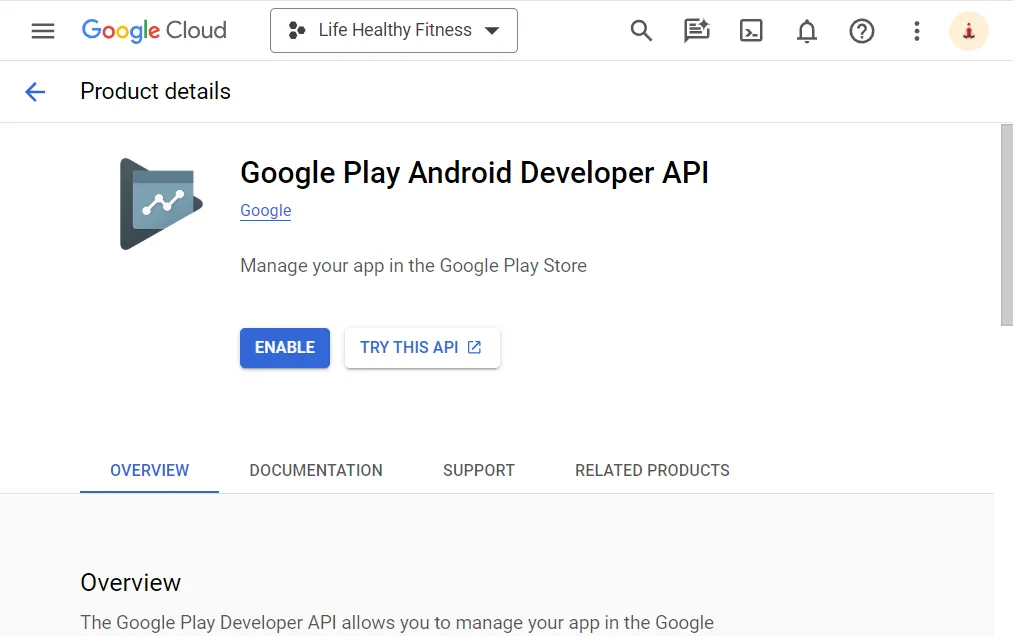
(If they are already enabled, the button will simply say “Manage”.)
Part 2: Create a Service Account
Next, we create the specific “bot” account (Service Account) that AppDataLayer will use to pull data.
- Navigate to IAM & Admin > Service Accounts in the Google Cloud Console (https://console.cloud.google.com/iam-admin/serviceaccounts).
- Click + CREATE SERVICE ACCOUNT at the top.
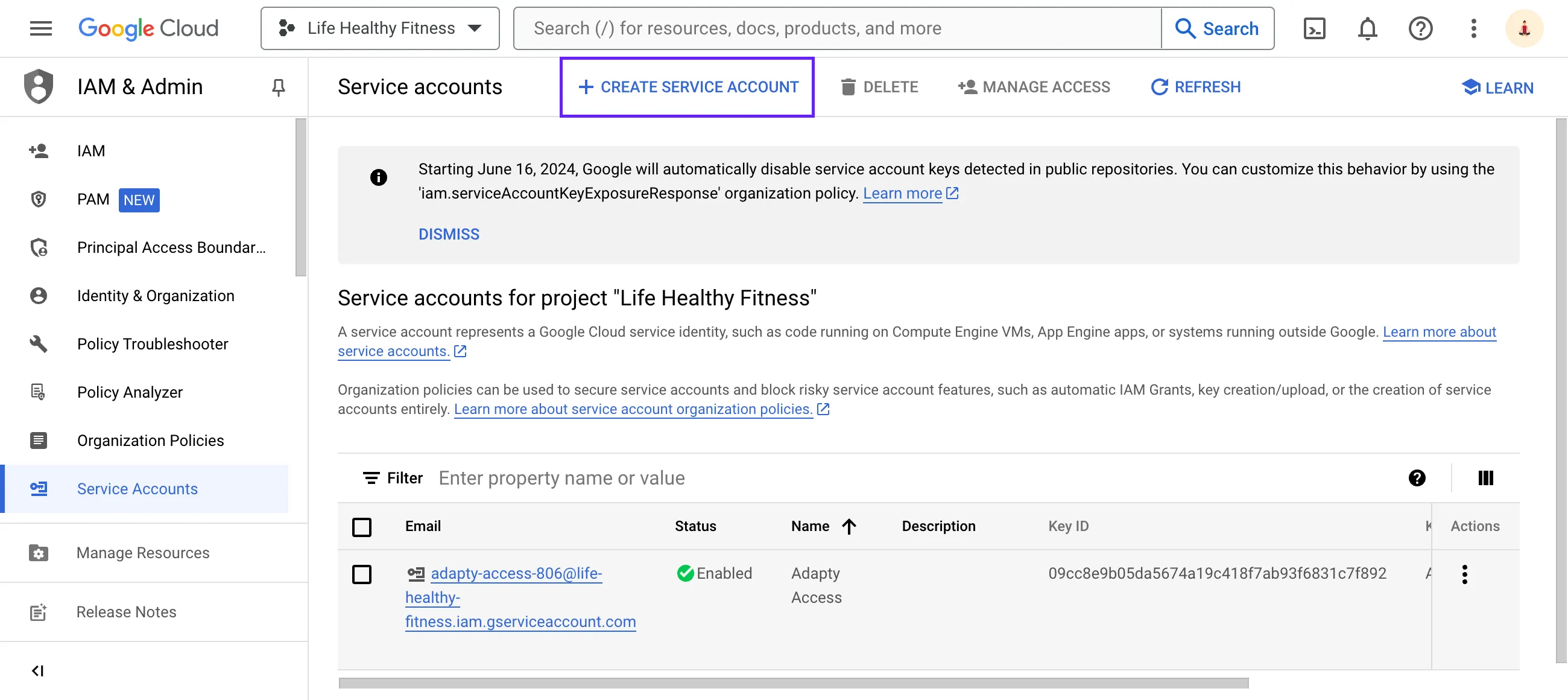
- Enter a Service account name (e.g., “AppDataLayer”) and click Create and Continue.
- You do not need to assign any roles here. Click Done.
- Once returned to the Service Accounts list, look for your newly created account. Copy the service account email address and keep it for the next step.
Part 3: Grant Permissions in Google Play Console
Now we let the Google Play Console know that this new Service Account is allowed to read your app’s performance metrics.
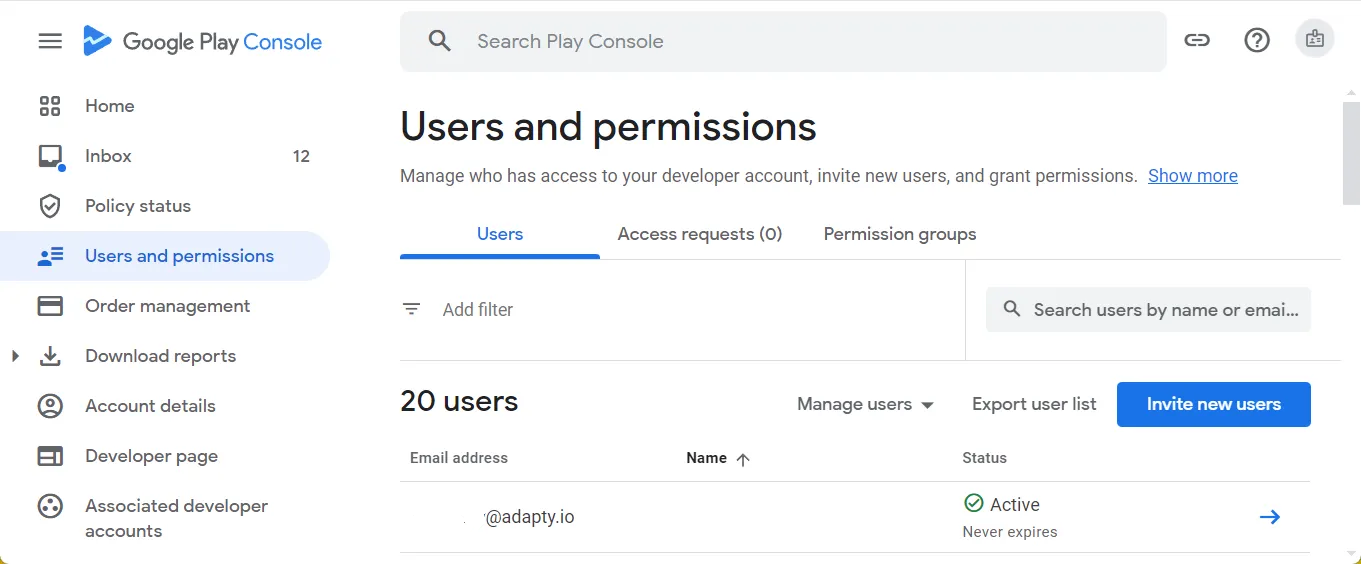
- Open the Users and permissions page in the Google Play Console and click the Invite new users button.
- In the Invite user page, enter the service account email address you copied in Part 2.
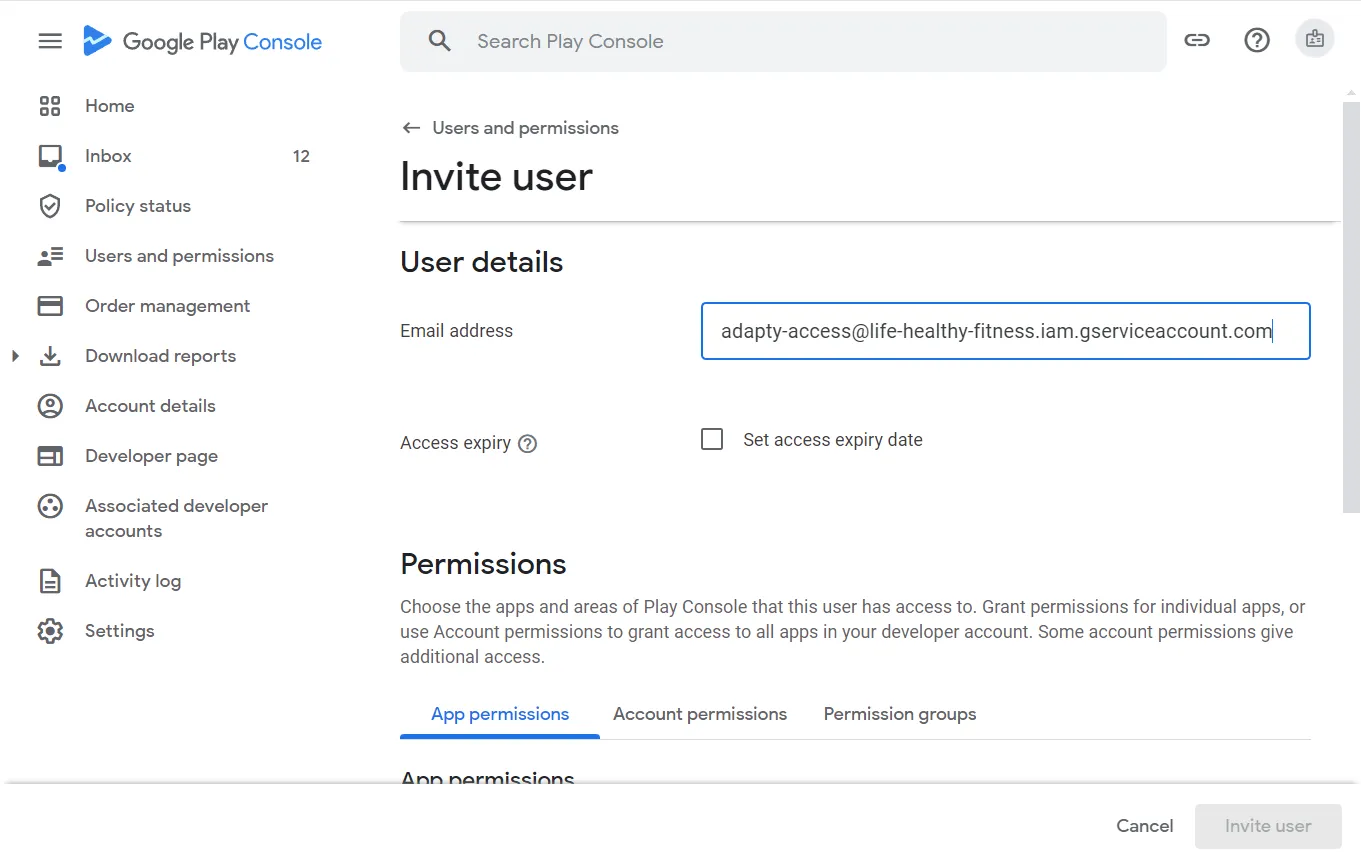
- Switch to the Account permissions tab.
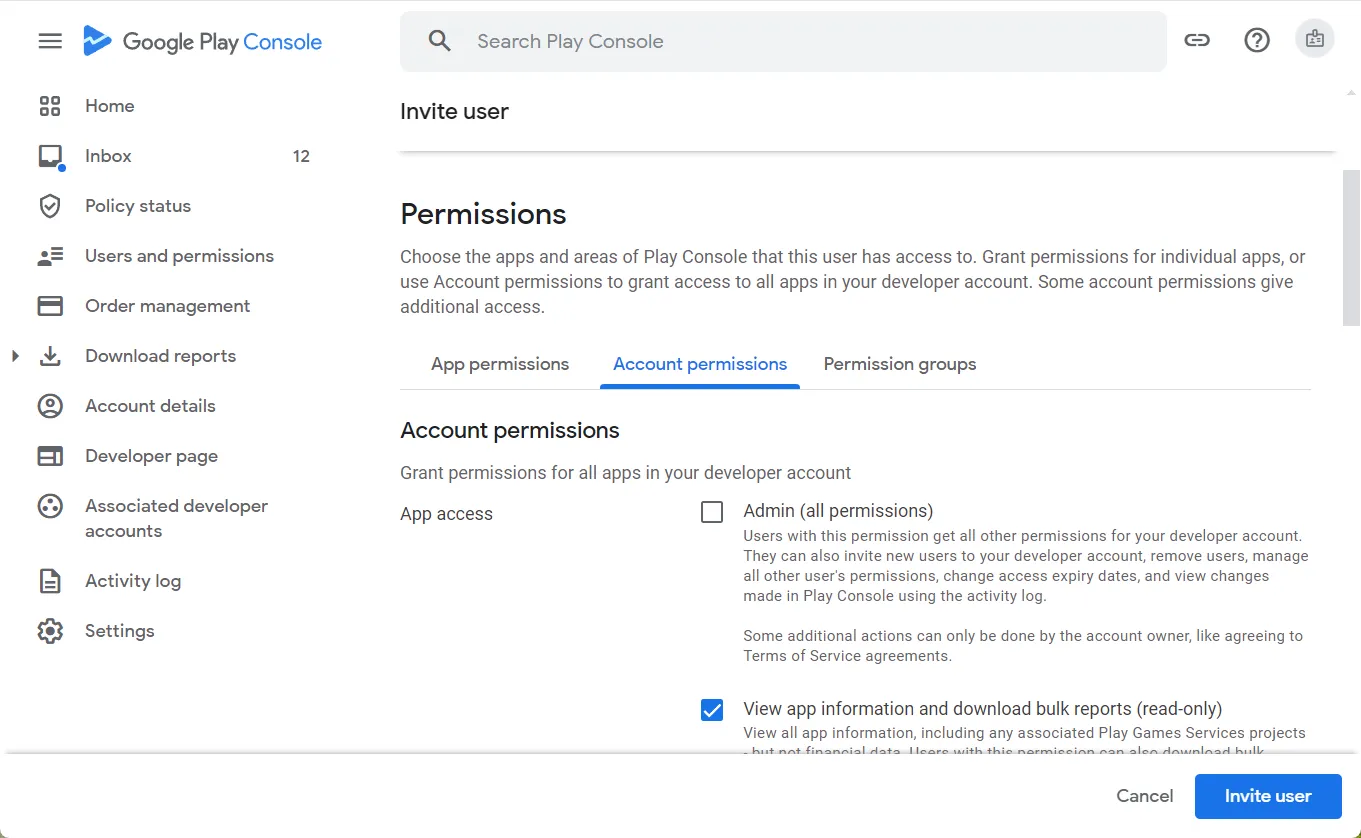
- Select the following read-only permissions:
- View app information and download bulk reports (read-only)
- View financial data, orders, and cancellation survey responses
These permissions are exactly what AppDataLayer needs to pull your Analytics and Sales/Revenue data without having the power to modify your apps or respond to reviews.
- Click the Invite user button.
- In the Send invite? window, click the Send invite button. The service account will show in the user list.
:::warning Service Account Activation Time It usually takes at least 24 hours for your new service account to become active. However, there’s a hack. After creating the service account, open any application in the Google Play Console and navigate to Monetize -> Products -> Subscriptions/In-app products. Edit the description of any product and save the changes. This should activate the service account immediately, and you can revert the changes afterward! :::
Part 4: Generate Service Account Key File
Now that the account is wired up, you need to actually download the secure key file to connect to AppDataLayer.
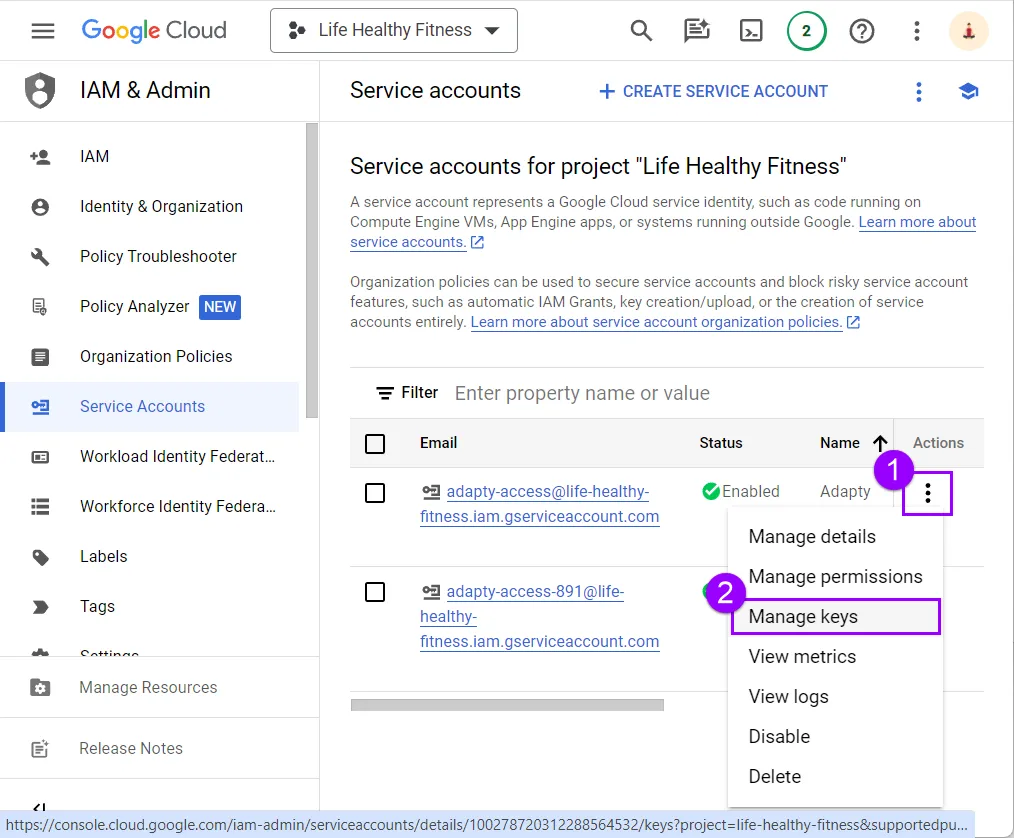
- Open the Service accounts section in the Google Cloud Console (https://console.cloud.google.com/iam-admin/serviceaccounts) again and ensure you’ve selected the correct project.
- Click the three dots under the Actions column for your new account and select Manage keys.
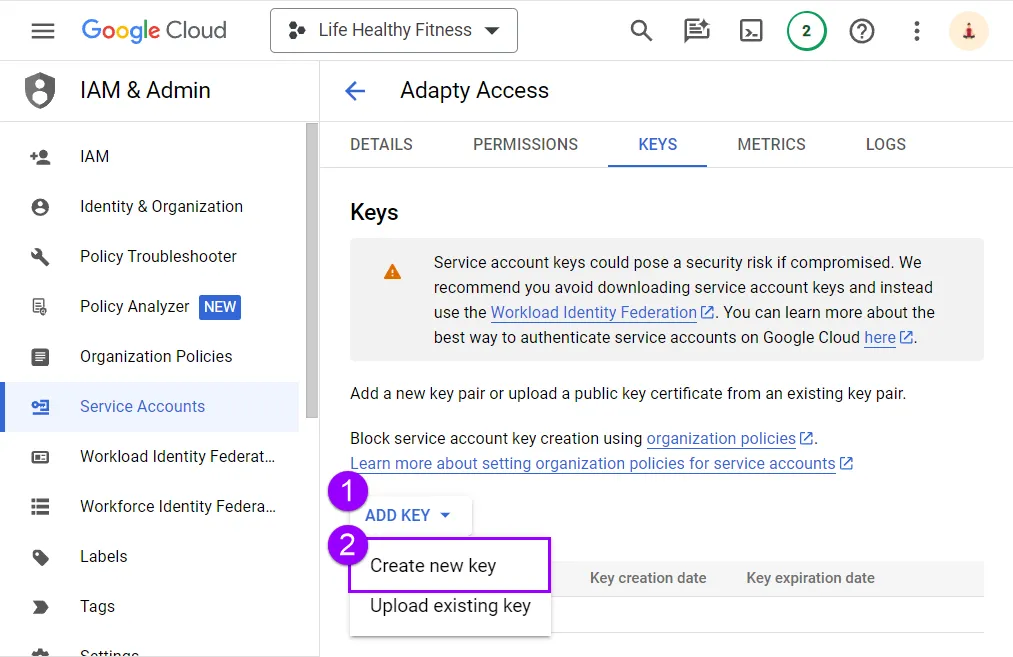
- In the window that opens, click Add key and choose Create new key from the dropdown menu.
- In the Create private key for [Your_project_name] window, select JSON and click Create.
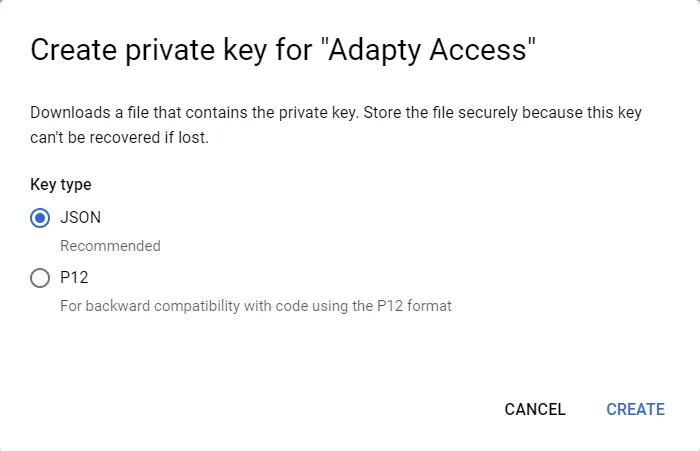
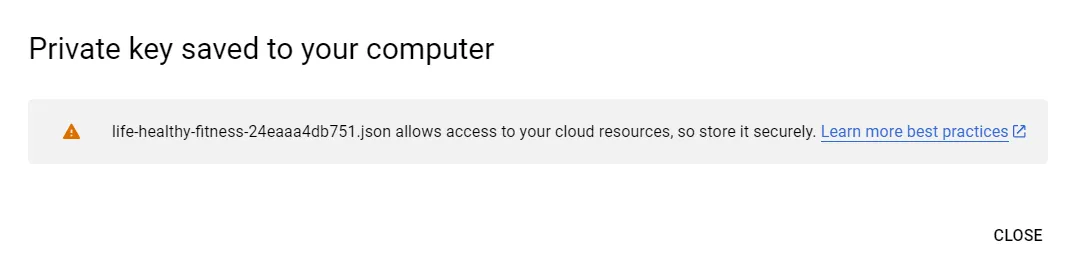
- Your private key will be saved to your computer as a JSON file. Keep this file safe!
Part 5: Connect to AppDataLayer
You now have a Service Account JSON file with the correct read-only permissions!
- Go to your AppDataLayer Dashboard.
- Navigate to Store Credentials > Add Credential.
- Select Google as the provider.
- Enter your app’s Package Name (e.g.
com.example.myapp). You can find this under your app name in the Google Play Console. - Upload or paste the entire contents of your downloaded JSON Key file.
- Click Save.
