Apple App Store Credentials
How to connect AppDataLayer to App Store Connect to pull App Analytics, Revenue, and Reviews
To securely pull your App Analytics, Revenue, and Customer Reviews into AppDataLayer, you need an App Store Connect API key. This consists of three pieces: an Issuer ID, a Key ID, and a private key file (.p8).
The setup takes about 5 minutes and the key is active immediately.
Prerequisites
- An App Store Connect account with Admin or Account Holder access.
- At least one published app in the App Store.
Step 1: Generate an API Key
API keys are generated in App Store Connect under Users and Access → Integrations → App Store Connect API. You can use the same API key for all your App Store apps under the given account.
- Go to App Store Connect and ensure you are on the Integrations tab, and the App Store Connect API sidebar section.
- Select Generate API Key, or—if you’ve generated keys in the past—click on the ”+” symbol next to the Active header.
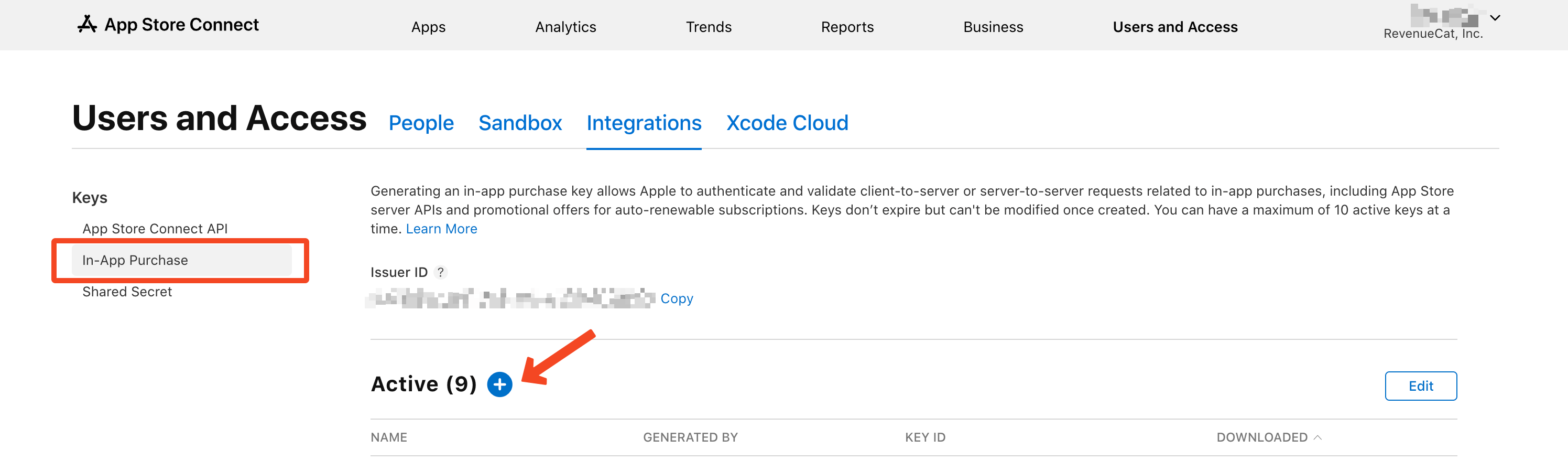
- You’ll be prompted to enter a name for the key (e.g., “AppDataLayer”).
- The newly created key needs to have the Sales, App Manager, or Admin access level. We highly recommend Sales for completely read-only access to your analytics and revenue.
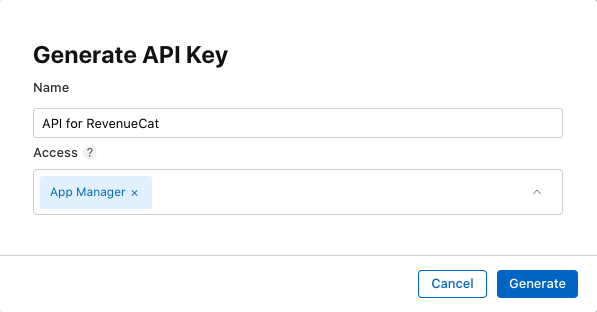
- Click Generate.
When creating the key, the Sales role is the best and most secure choice. Because AppDataLayer automatically safely scrapes your customer reviews directly from public App Store listings, you do not need to grant us review permissions (Customer Support) on this API key!
Step 2: Download Your Credentials
Now that the key is generated, it will appear in Active Keys and you get one shot to download it. You need to collect three items to plug into AppDataLayer.
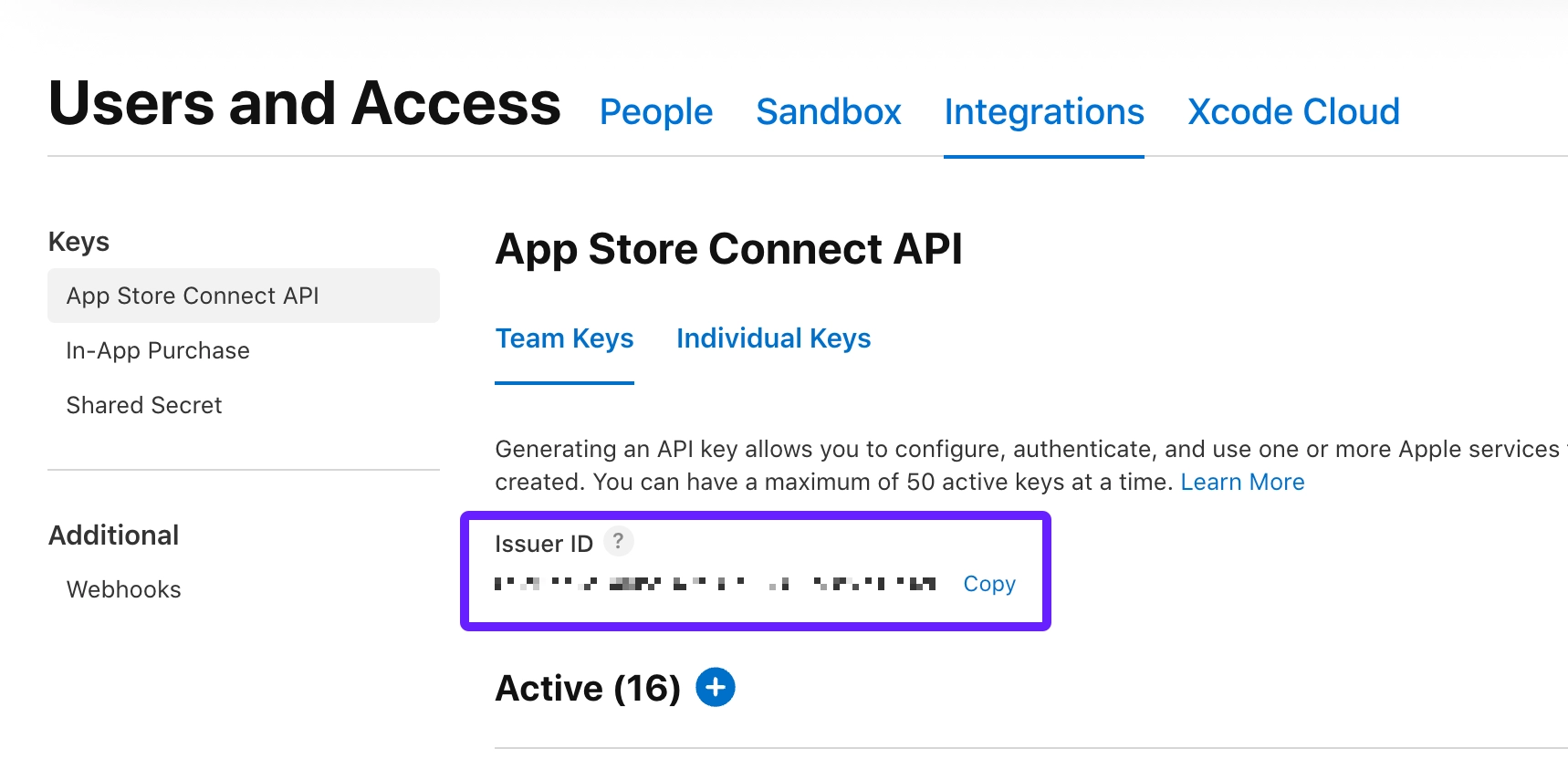
1. Issuer ID
At the very top of the API keys page, above the table, you’ll see your Issuer ID. Copy this UUID.
2. Key ID
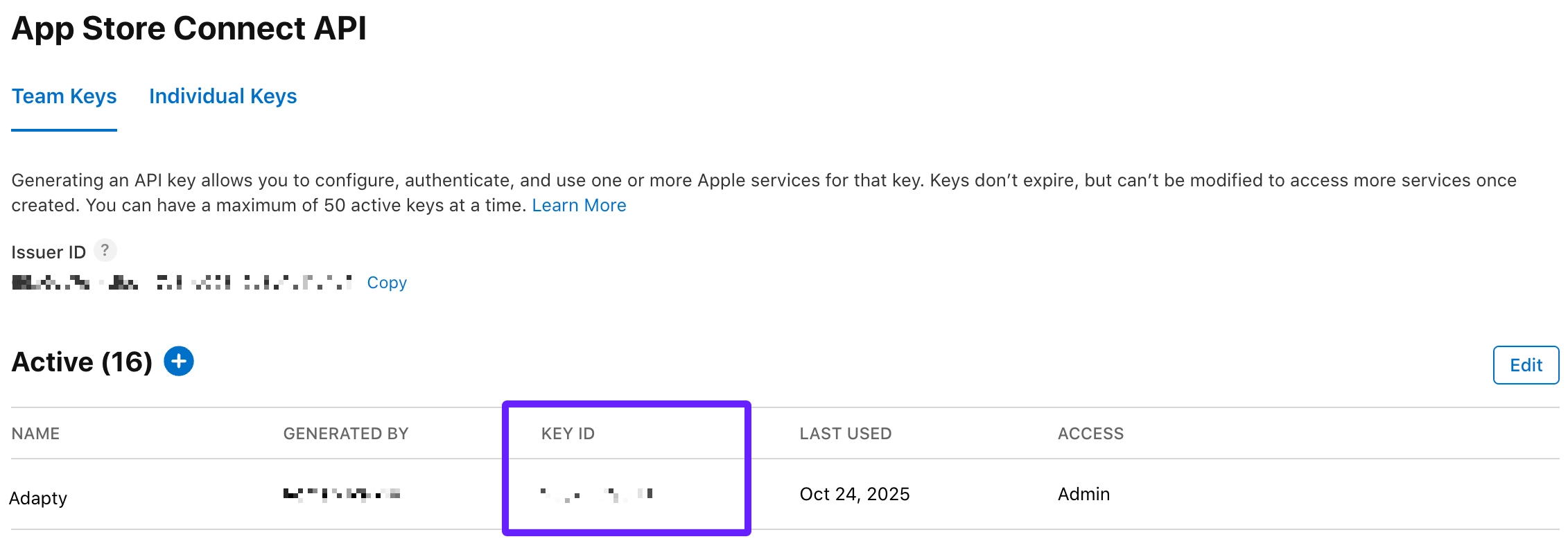
In the table where your new key is listed, copy the Key ID next to the name you provided.
3. Private Key (.p8 file)
Select Download API Key and store the .p8 file in a safe place, you’ll need to upload this to AppDataLayer in the next step.

Step 3: Add Credentials to AppDataLayer
You now have all three pieces ready:
- Issuer ID (e.g.
57246542-...) - Key ID (e.g.
2X9R4HXF34) - Private Key (the
.p8file)
- Go to your AppDataLayer Dashboard.
- Navigate to Store Credentials > Add Credential.
- Select Apple as the provider.
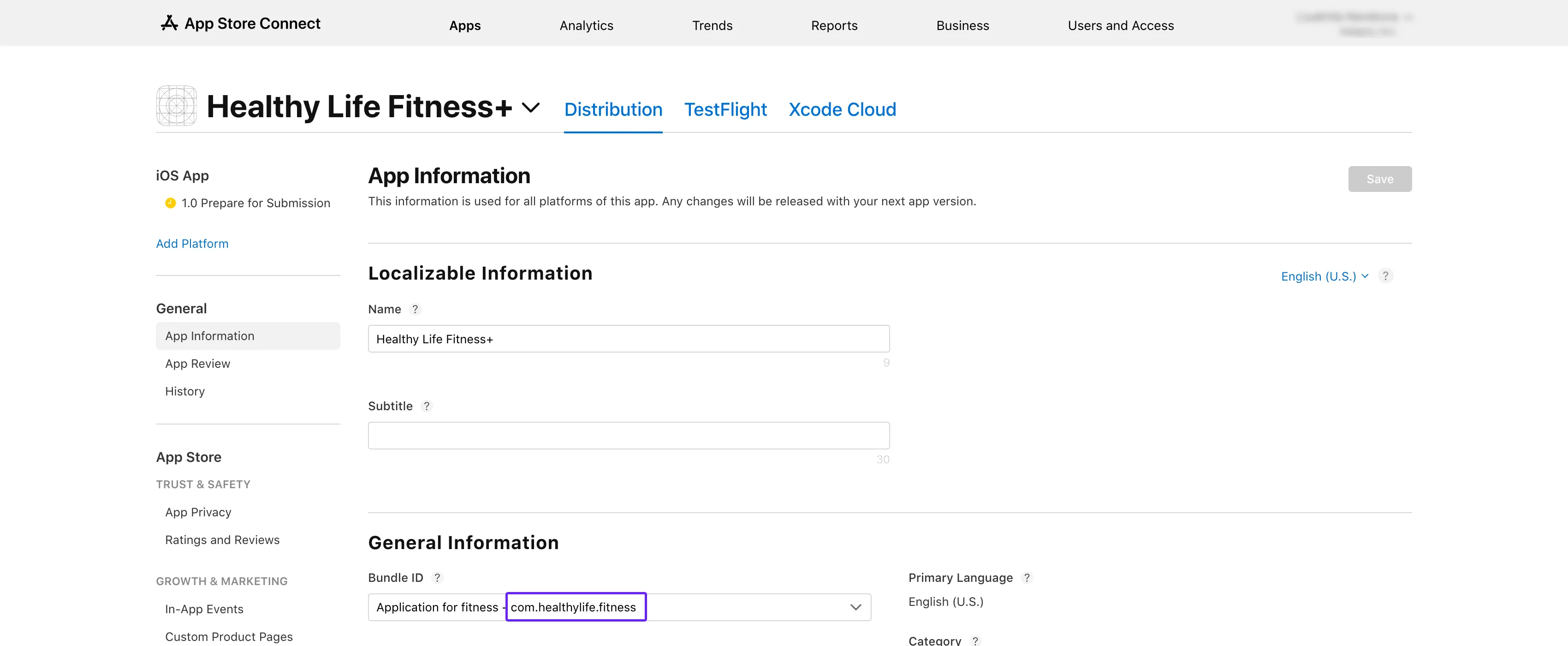
- Enter your app’s Bundle ID (e.g.
com.example.myapp). You can find this in App Store Connect under General → App Information.
- Paste your Issuer ID and Key ID.
- Open your downloaded
.p8file in a text editor, copy the entire contents (including the-----BEGIN PRIVATE KEY-----lines), and paste it into the key field. - Click Save.
What Data AppDataLayer Pulls
With these credentials, AppDataLayer routinely syncs:
- App Analytics: Impressions, page views, and downloads.
- Sales and Trends: Revenue, active subscriptions, and proceeds.
- Customer Reviews: Star ratings and written reviews.
- Metadata: App title, description, and version info.
AppDataLayer uses read-only API endpoints and cannot submit builds, modify pricing, or alter your app listing.