Google Analytics Credentials
How to connect a read-only Service Account to Google Analytics (GA4) for AppDataLayer.
To securely pull your website or app analytics directly from Google Analytics 4 (GA4) into AppDataLayer, you need to provide a Service Account JSON key and your Property ID.
This process only takes a few minutes and grants us strictly read-only access to your analytics metrics.
Prerequisites
- A Google Cloud Console account (free)
- A Google Analytics account with Editor or Admin access
- At least one GA4 property with data
Part 1: Enable the Required APIs in Google Cloud
We must first tell Google Cloud to allow programmatic access to your Analytics data.
- Go to the Google Cloud Console and ensure you have selected your organization’s project. (If you don’t have a project, click the project selector dropdown at the top-left, click New Project, and create one.)
- Visit the APIs & Services > Library and enable two APIs:
- Google Analytics Data API (To read analytics reports like traffic, events, conversions).
- Google Analytics Admin API (To read property metadata and account structure).
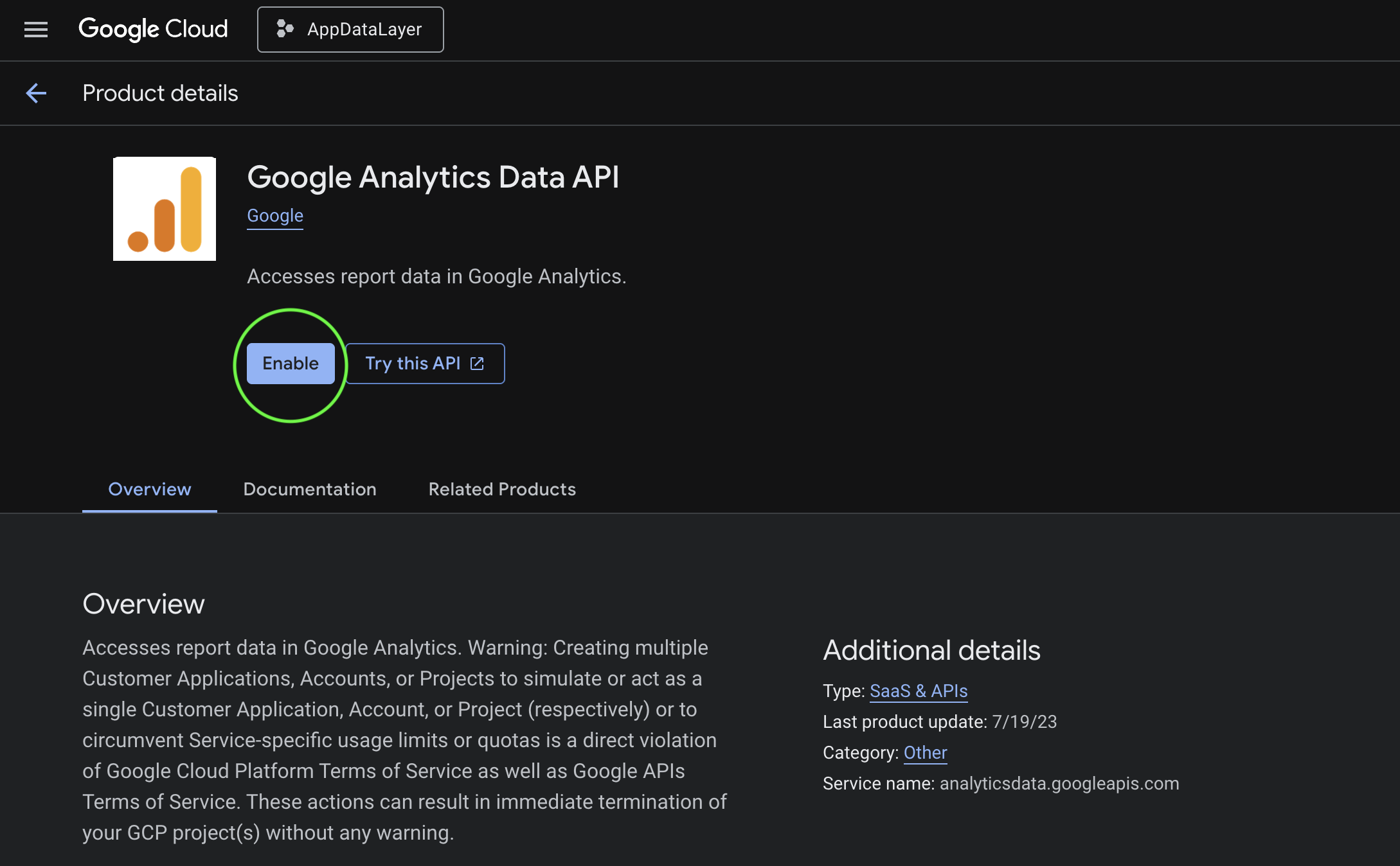
(If they are already enabled, the button will simply say “Manage”.)
Part 2: Create a Service Account
Now we create the “bot” account (Service Account) that AppDataLayer will use to pull data.
If you already created a Service Account for Google Play, you can skip this entire part, skip key generation, and just reuse that exact same .json file and email address! (Just make sure you add it to GA4 in Part 3).
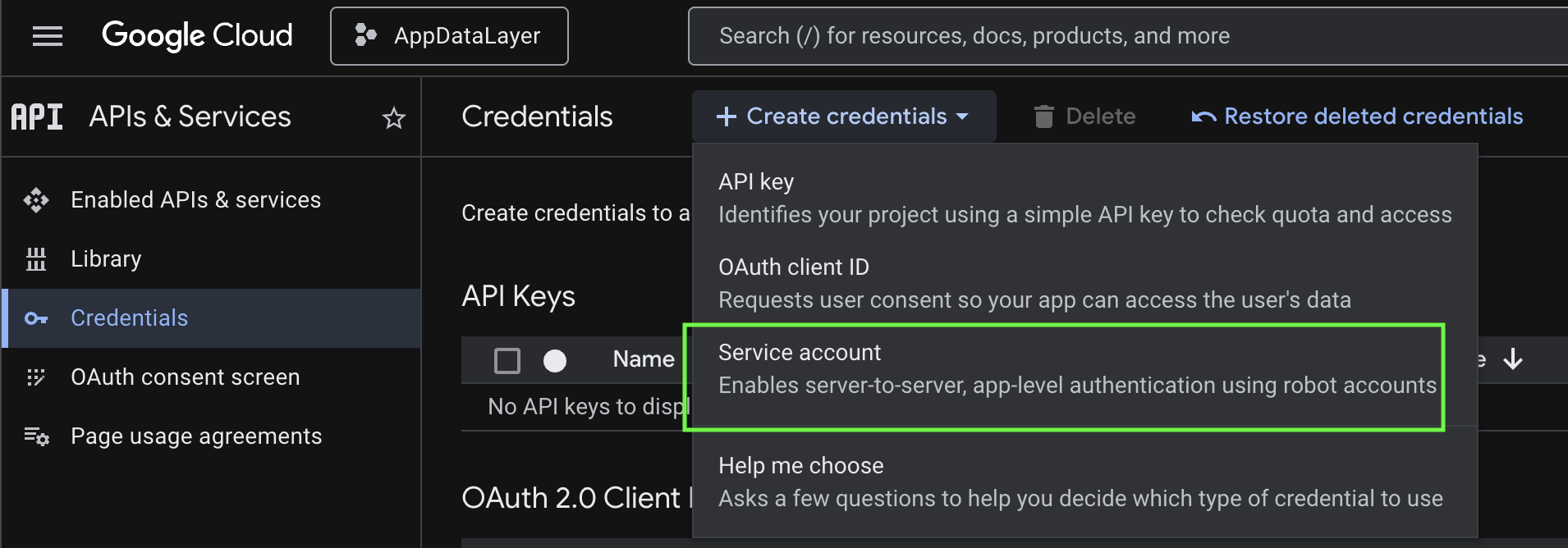
- Navigate to IAM & Admin > Service Accounts in the Google Cloud Console (https://console.cloud.google.com/iam-admin/serviceaccounts).
- Click + CREATE SERVICE ACCOUNT at the top.
- Enter a Service account name (e.g., “AppDataLayer”). The ID will auto-fill. Click Create and Continue.
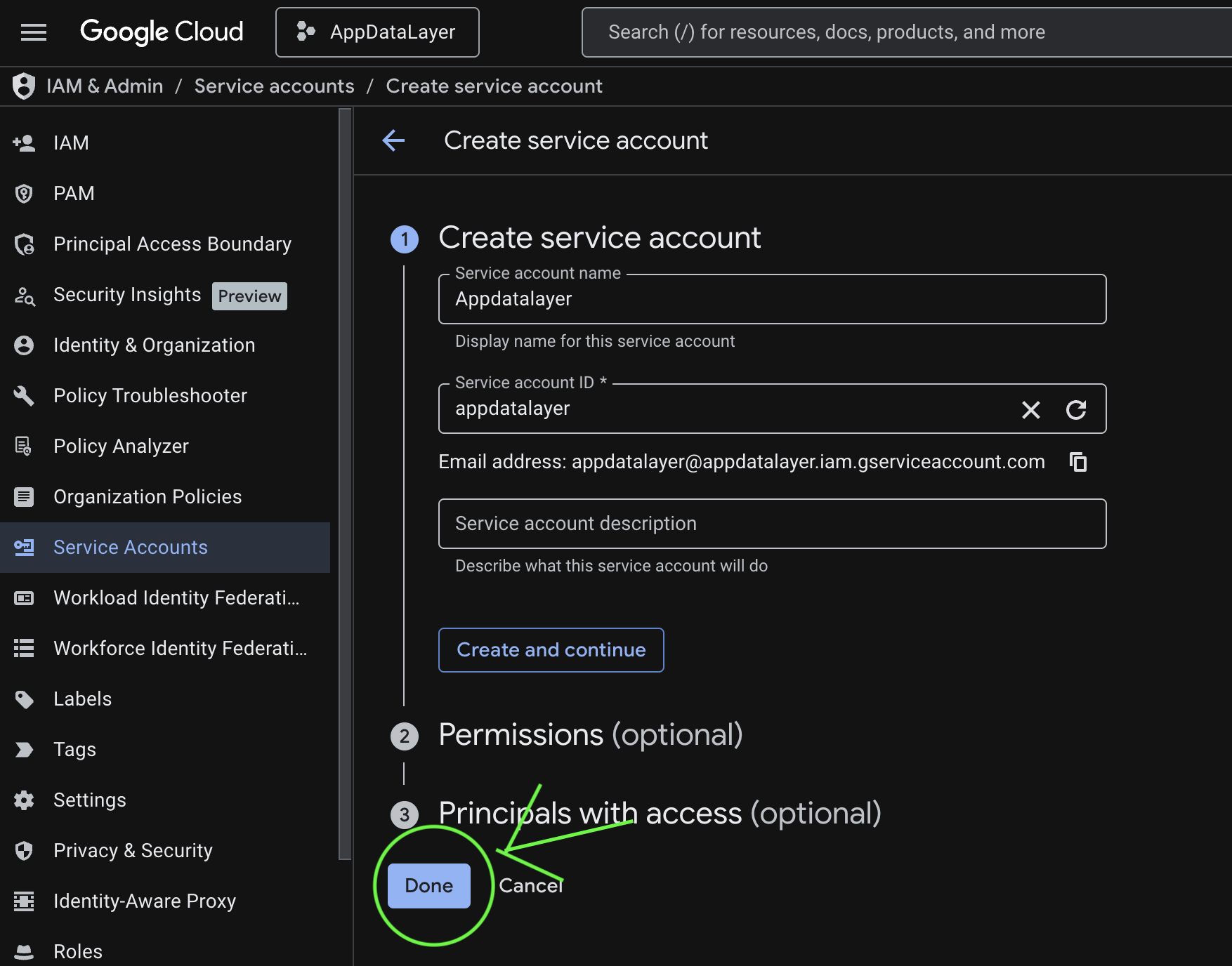
- You do not need to assign any roles here. Click Done at the bottom of the page.
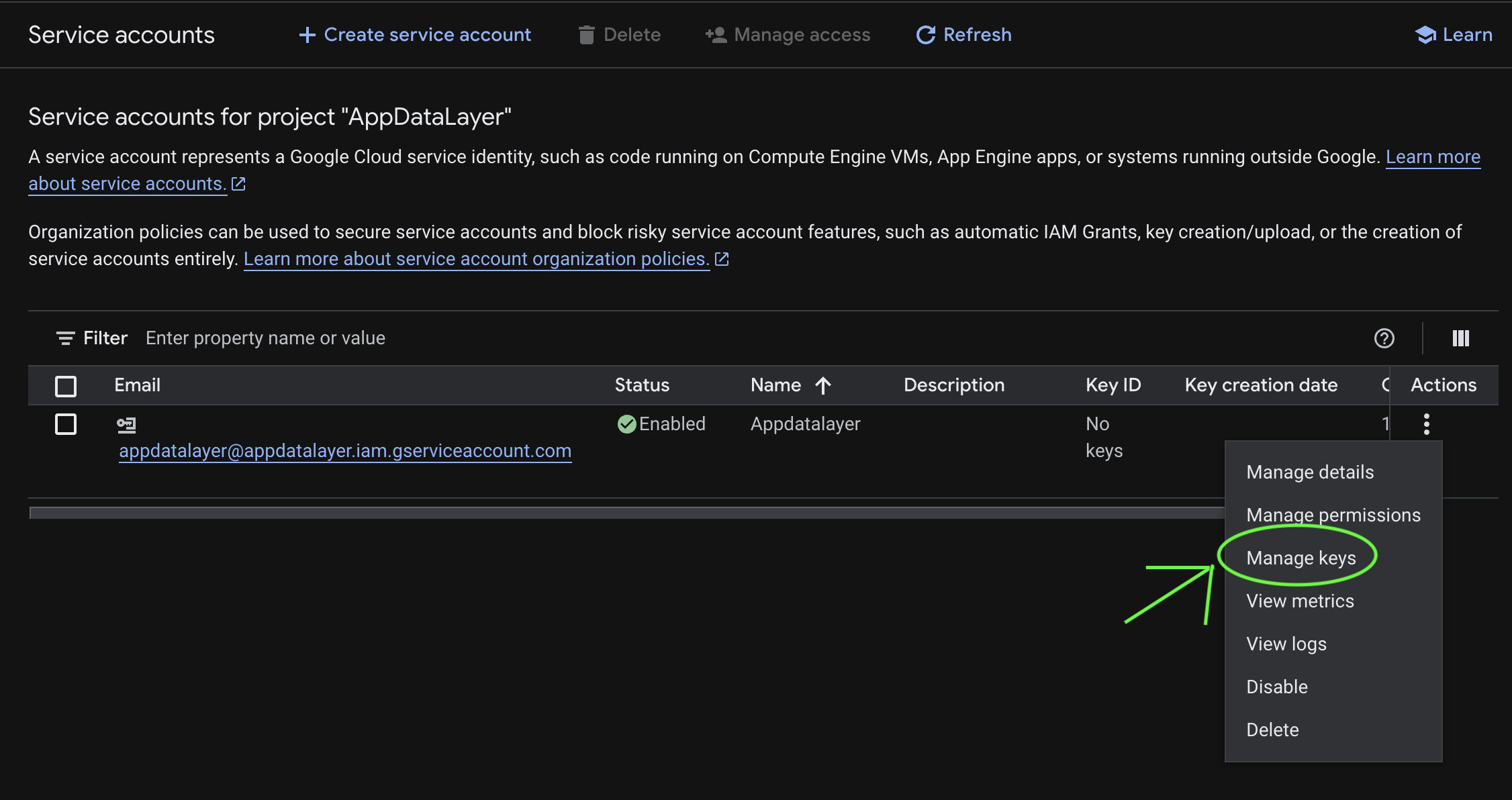
- Back on the Service Accounts list, copy the service account email address, then click the three dots under Actions and select Manage keys.
- In the new window, click Add key > Create new key.
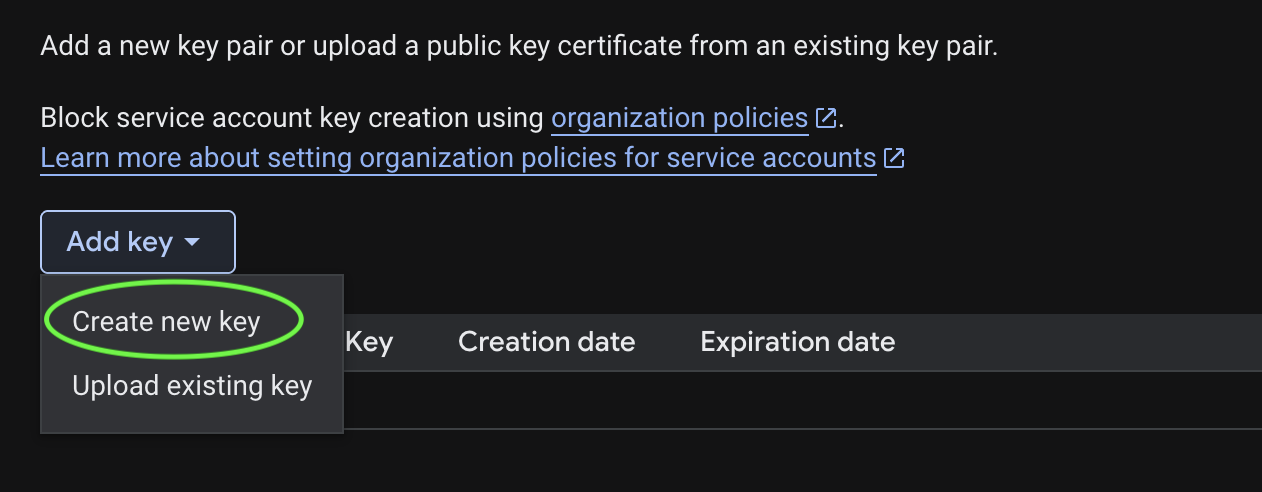
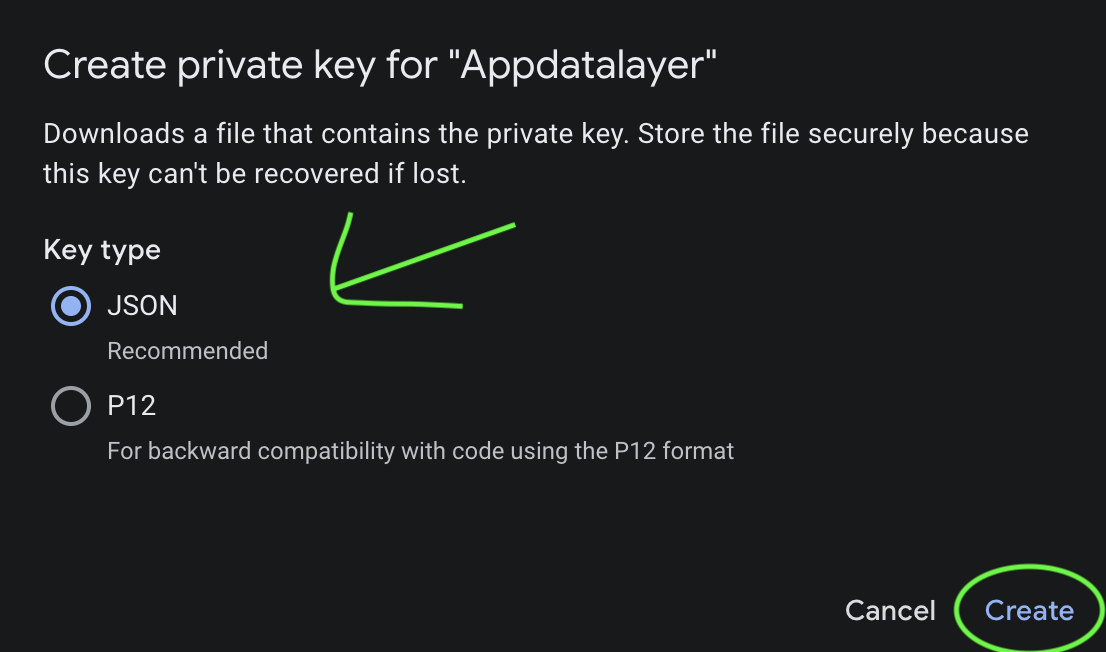
- Select JSON and click Create. The
.jsonkey file will download to your computer. Keep this file safe.
Part 3: Grant Access in Google Analytics (GA4)
Next, we tell your GA4 property to allow this new Service Account email to read data.
- Open your Google Analytics Dashboard.
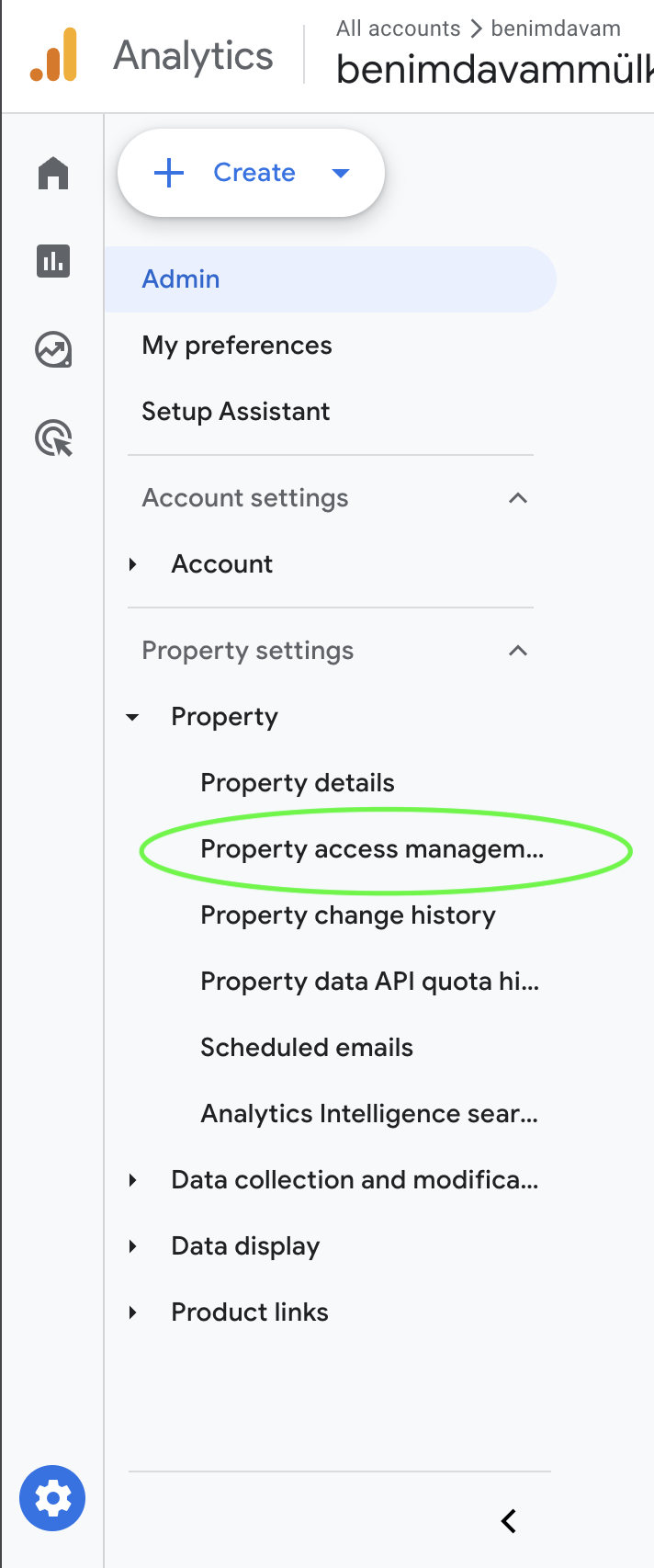
- Click the Admin gear icon in the bottom-left corner.
- Look at the middle column (the Property column) and click Property Access Management.
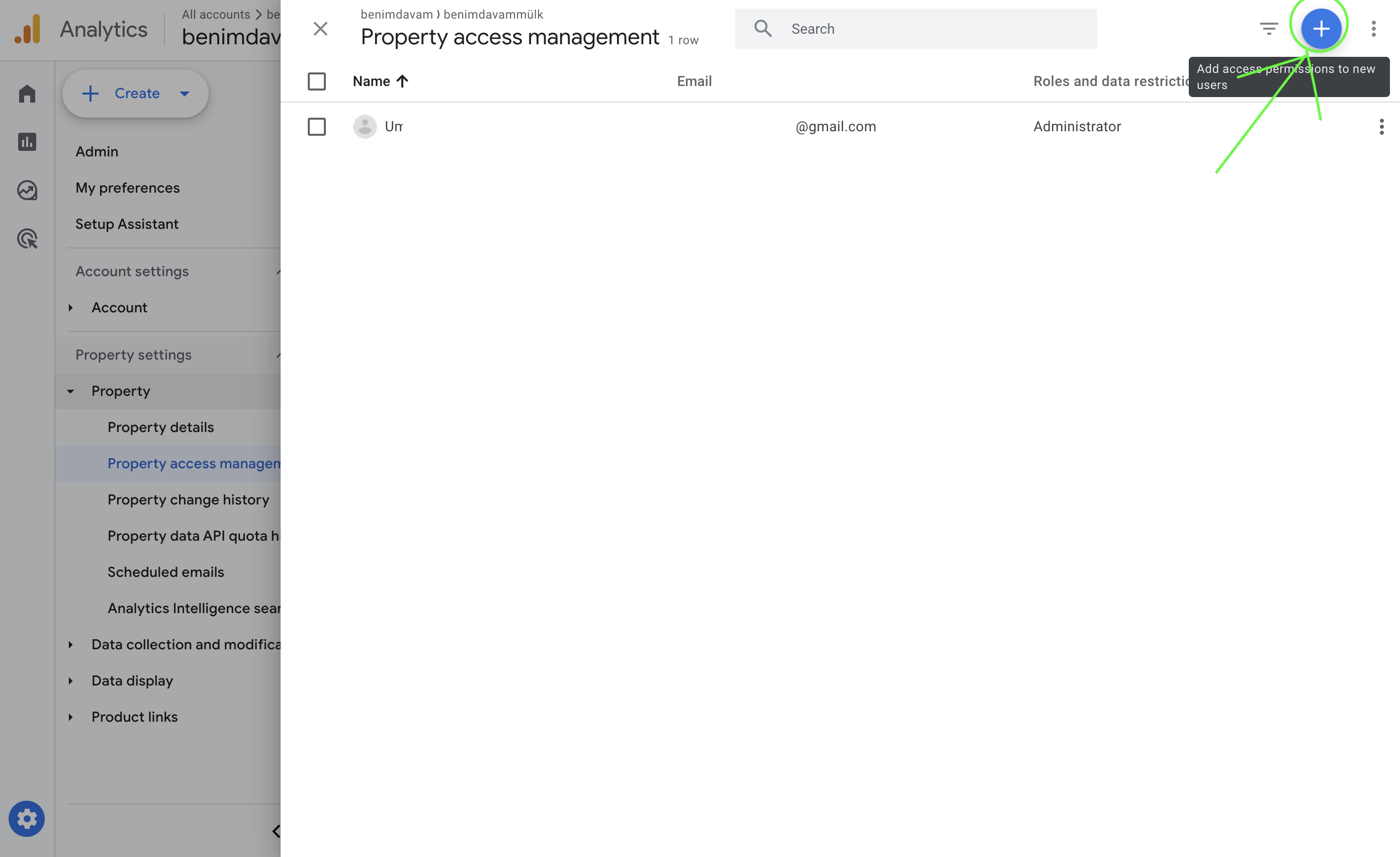
- Click the blue + button in the top right and select Add users.
- In the Add roles and data restrictions page, paste the Service Account email address you copied in Part 2 into the Email addresses field. (This is the email ending in
@your-project.iam.gserviceaccount.comthat you created in Google Cloud). - Scroll down to “Direct roles and data restrictions” and select the Viewer role. This ensures AppDataLayer can exclusively read your data without write access.
- Uncheck “Notify new users by email” (Service Accounts can’t receive email).
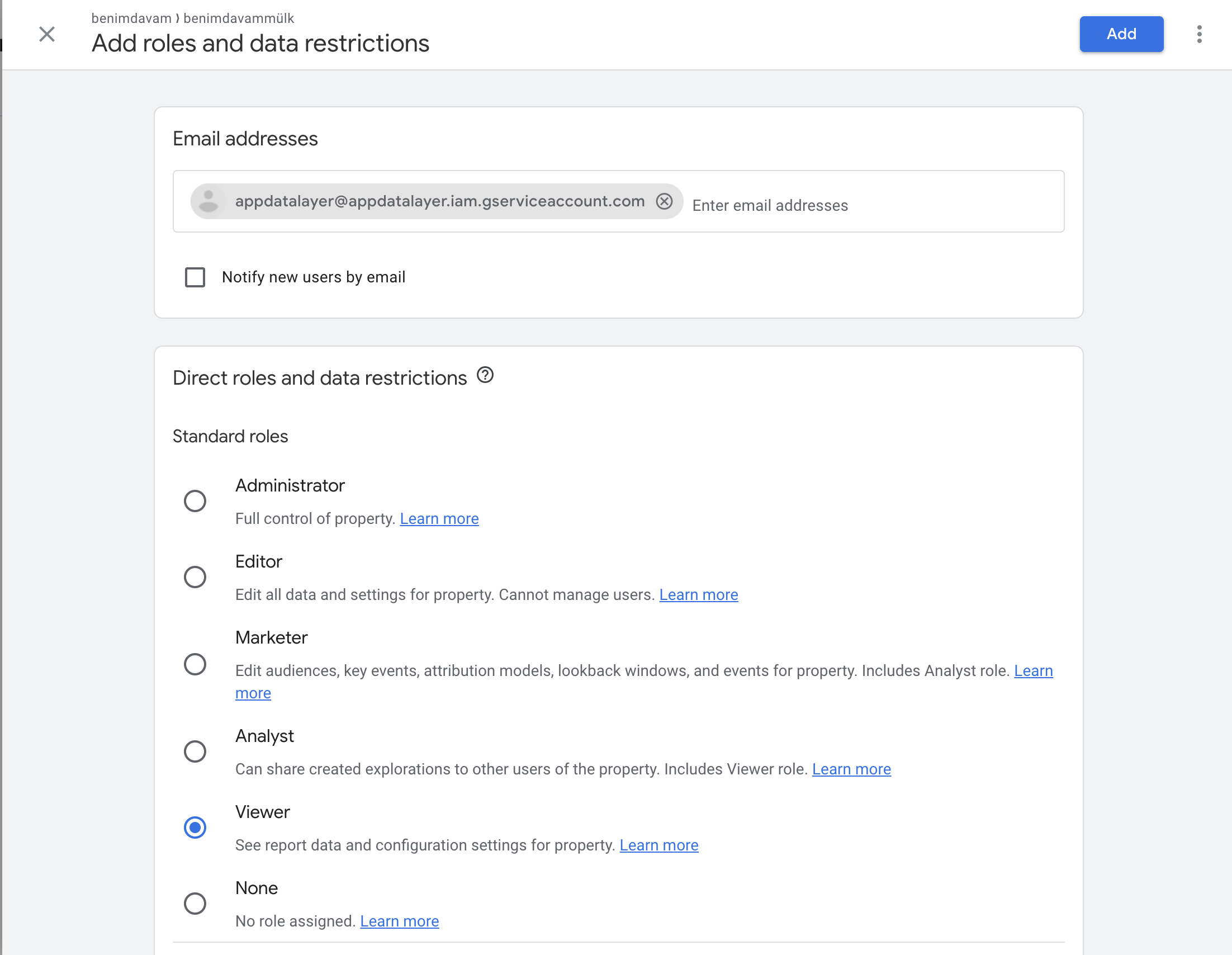
- Click the Add button at the top right to save permissions.
Part 4: Connect to AppDataLayer
You now have your Service Account .json key and you’ve granted it permission to read your GA4 property!
- In Google Analytics, find your Property ID by going to Admin > Property Details. (Note: The Property ID is a numeric ID, like
123456789. Do not use the Measurement ID which starts with “G-”).

- Go to your AppDataLayer Dashboard.
- Navigate to Store Credentials > Add Credential.
- Select Google Analytics as the provider.
- Enter your GA4 Property ID exactly as it appears.
- Upload or paste the entire contents of your downloaded JSON Key file.
- Click Save.
Troubleshooting
| Problem | Solution |
|---|---|
| ”User does not have sufficient permissions” | Verify the service account email was added as Viewer in GA4 Property Access Management. |
| ”API not enabled” | Enable both Google Analytics Data API and Admin API in Google Cloud Console. |
| ”Property not found” | Make sure you’re using the numeric Property ID, not the Measurement ID (G-XXXXXXX). |
| ”Invalid JSON key” | Upload the complete .json file. It must contain project_id, client_email, private_key, etc. |
| No data showing up | GA4 properties need at least 24-48 hours of data collection before reports are available. |
What AppDataLayer Accesses
With Viewer-level credentials, AppDataLayer can access:
- Traffic sources and acquisition channels (organic, paid, referral, social)
- User engagement metrics (sessions, page views, events)
- Conversion and goal data
- Revenue and e-commerce metrics
- Geographic and device breakdowns
- UTM campaign parameters
AppDataLayer cannot modify your GA4 property, change tracking settings, delete data, or access raw user-level PII.